Owner guide
Run the cafe from your phone
Ten short steps with screenshots. Keep this open the first week — bookmark cafe.softwareforge.cc/admin.
01Open your dashboard
Go to cafe.softwareforge.cc/admin on your laptop or phone. Bookmark it — this is mission control.
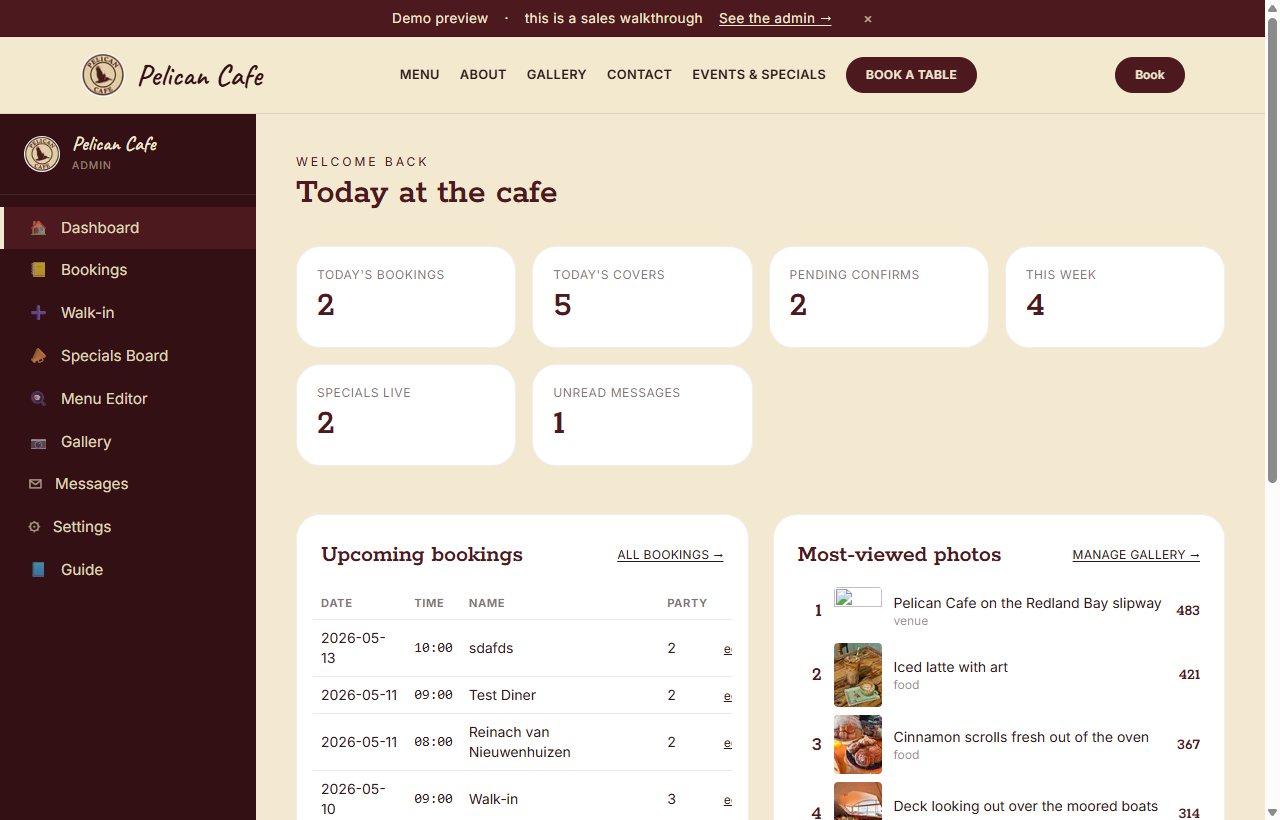
The dashboard shows today at a glance: how many bookings you have, total covers, what's pending your confirmation, and the most-viewed photos on your gallery.
The left sidebar takes you everywhere. On phone the menu opens with the ☰ Menu button.
02See today's bookings
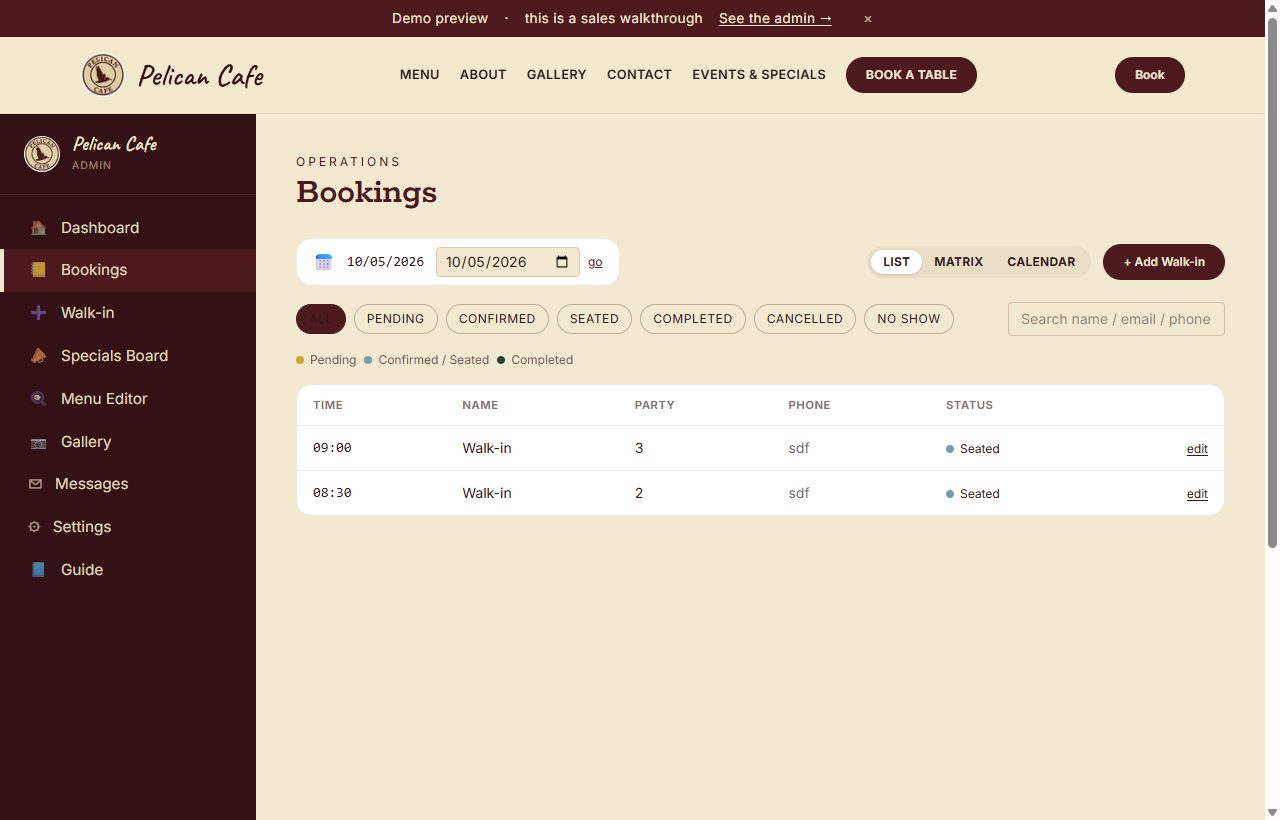
Click Bookings in the sidebar. You land on the list view for today — time, name, party size, phone, and status pill for each.
The status filter pills at the top let you focus: Pending means it needs your confirmation, Confirmed is good to go, Seated are at a table, Completedhave left, and Cancelled / No-show are out of the way.
Use the date picker on the left to look at any other day. The little search box on the right finds a booking by name, email, or phone.
03Use the matrix view to see your tables
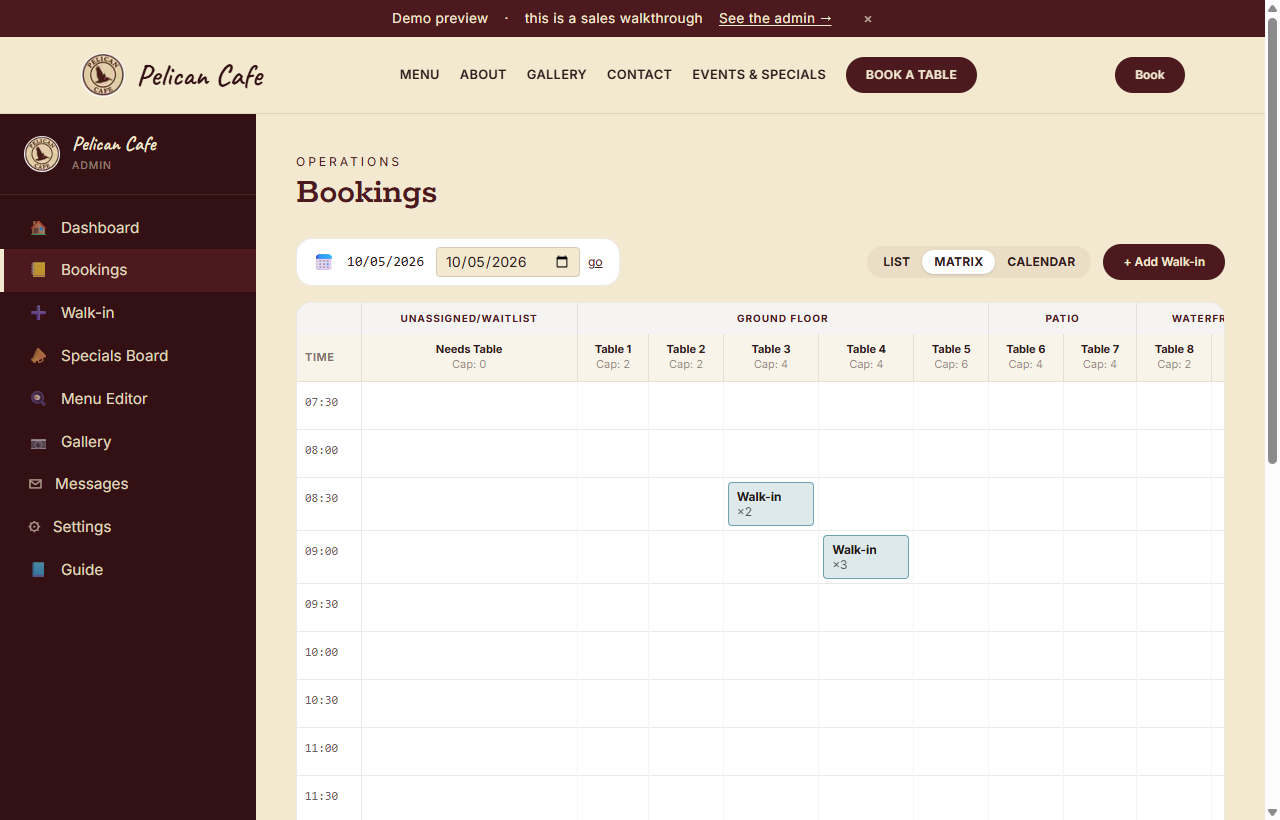
Switch to Matrix in the top-right view toggle. This is the floor-plan view — time goes down the left, every table goes across the top, grouped into Unassigned/Waitlist, Ground Floor, Patio, and Waterfront.
Booked cells show the guest name + party size. Hover an empty cell and a + button appears — click it to drop a walk-in straight onto that table at that time. Pre-fills the form for you.
You can move a booking to a different table from its detail page (click the booking block, then change the Table dropdown).
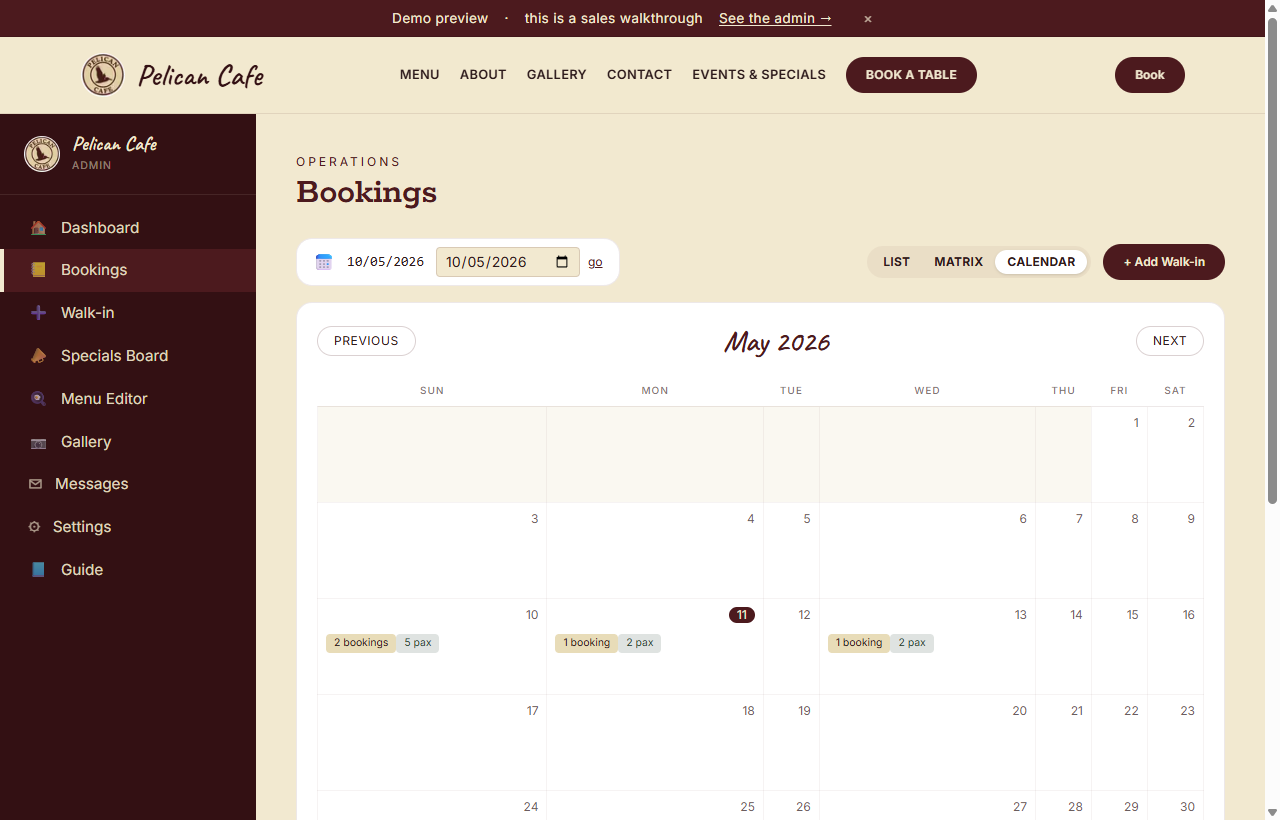
04See the whole month at a glance
Switch to Calendar. Each day shows how many bookings + how many guests (pax) you have. Today is highlighted in burgundy.
Click any day to jump straight to its list. Use Previous / Next to flip months — useful when planning ahead for an event or a public holiday.
05Confirm or modify a booking
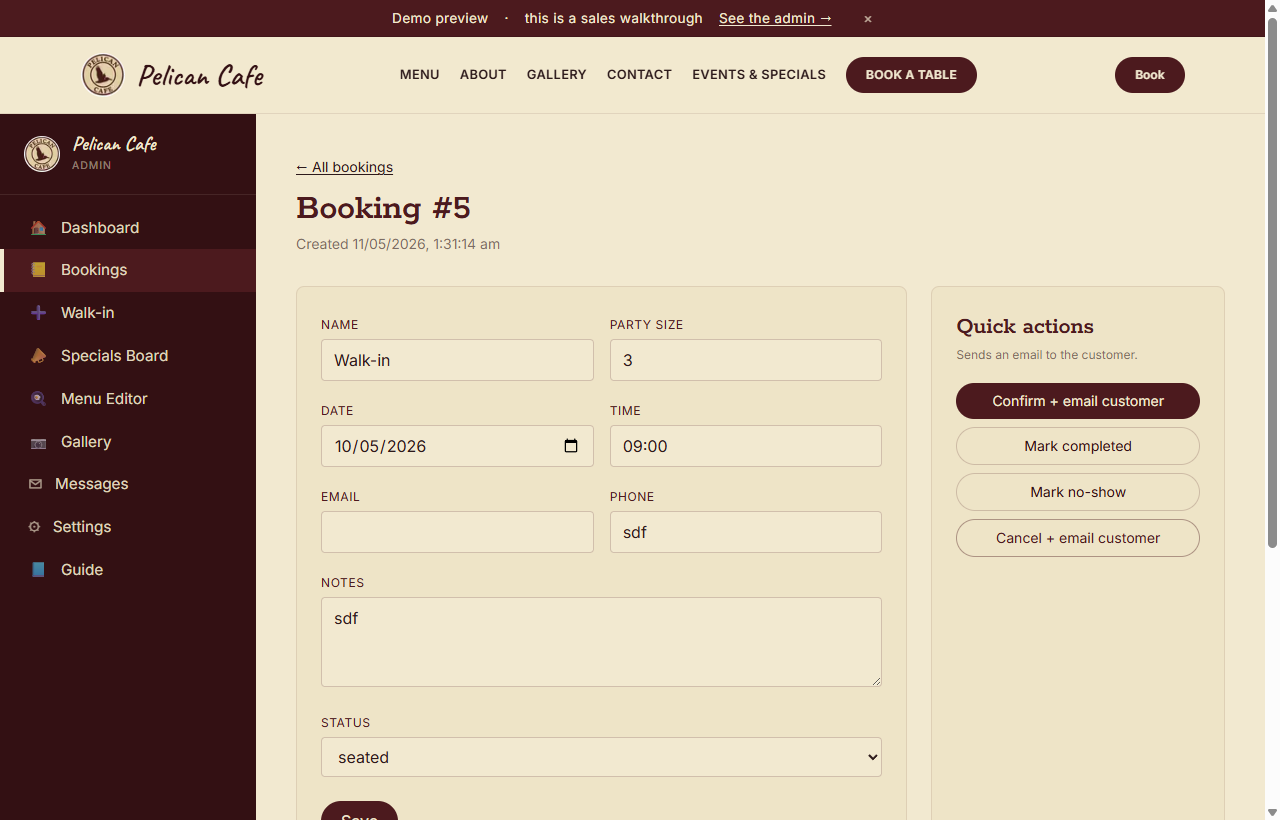
Click any booking from the list, matrix, or calendar to open its detail page. You can edit name, phone, party size, date, time, table, notes — all inline.
The Quick actions column on the right is the fast path:
- Confirm + email customer — sends a confirmation email and flips status to confirmed.
- Mark seated — when the guests arrive at their table.
- Mark completed — when they leave.
- Mark no-show — when they don't turn up.
- Cancel + email customer — sends a cancellation email and frees the slot.
06Add a walk-in
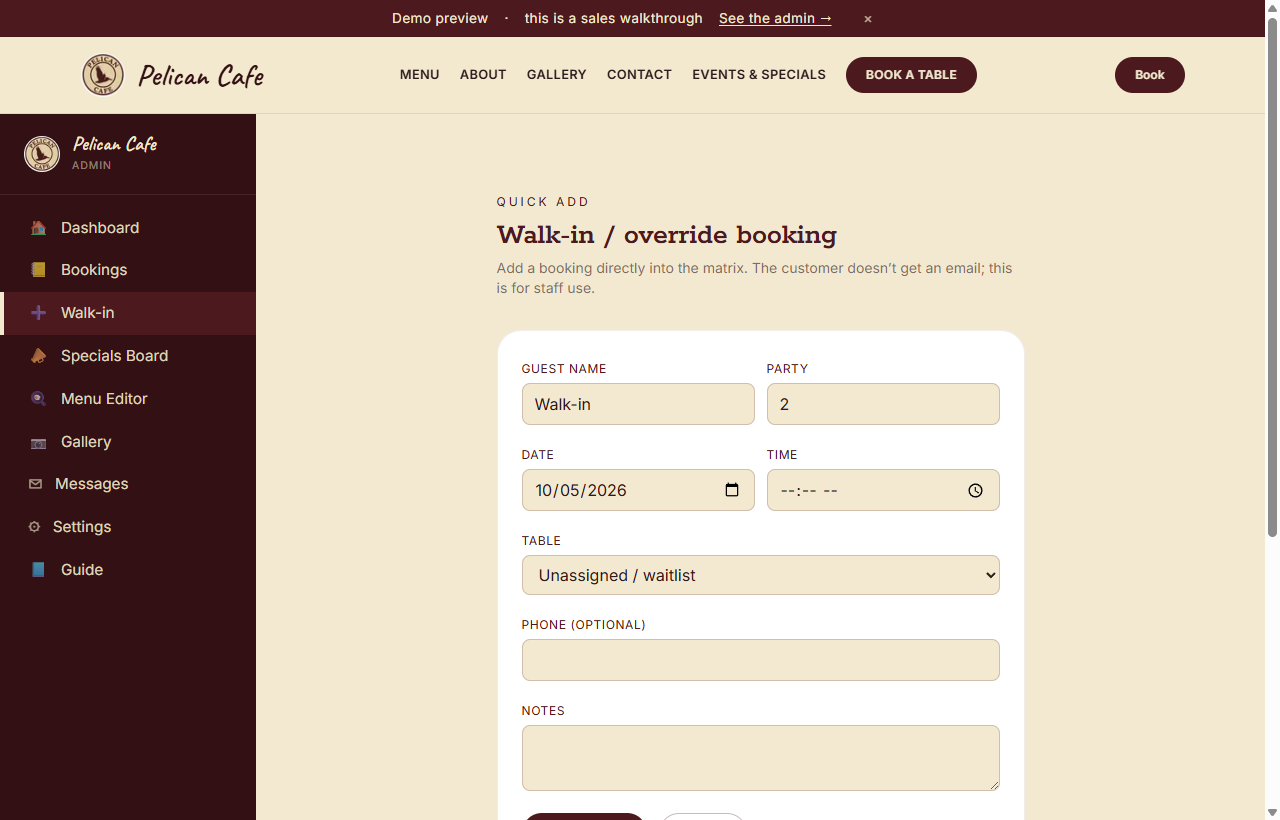
Three ways to add one:
- Sidebar → Walk-in
- Matrix view → hover empty cell → click +
- Dashboard → Add walk-in quick action
Fill in name (or just leave "Walk-in"), party size, table, and any notes. The booking saves as seated straight away — no email is sent because the guests are already in the door.
07Publish a special or event
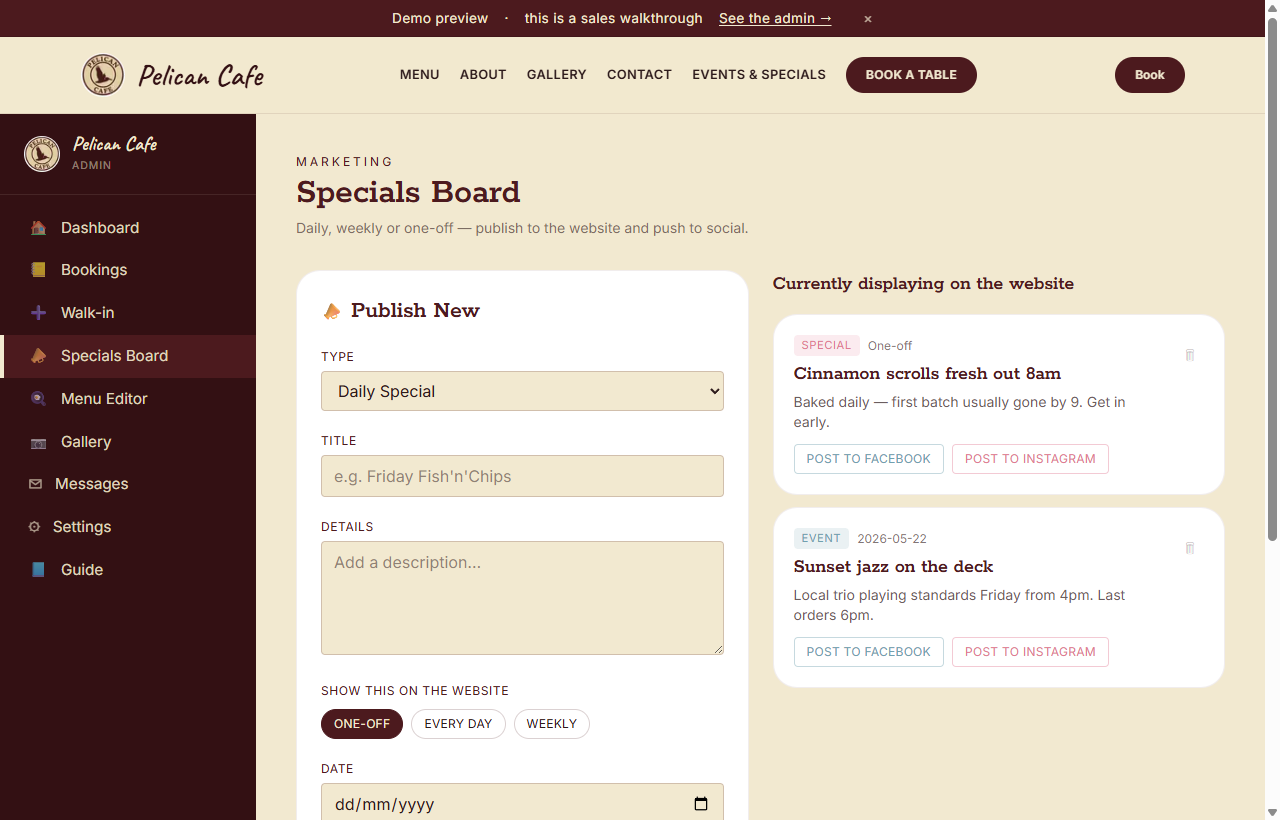
Sidebar → Specials Board. Three things you can publish:
- Daily Special — for chef's specials, today's pastry, etc.
- Event — live music, trivia night, public-holiday opening.
- Announcement — closing early, staff news, etc.
Pick a recurrence: One-off (with a date), Daily (every day until you remove it), or Weekly(a specific weekday — e.g. "Friday Fish & Chips").
After publishing, the cards on the right show what's live on the website. Click Post to Facebook or Post to Instagram to push it to your social pages — once you've connected your Cafe Page (set up by your developer).
08Edit menu prices
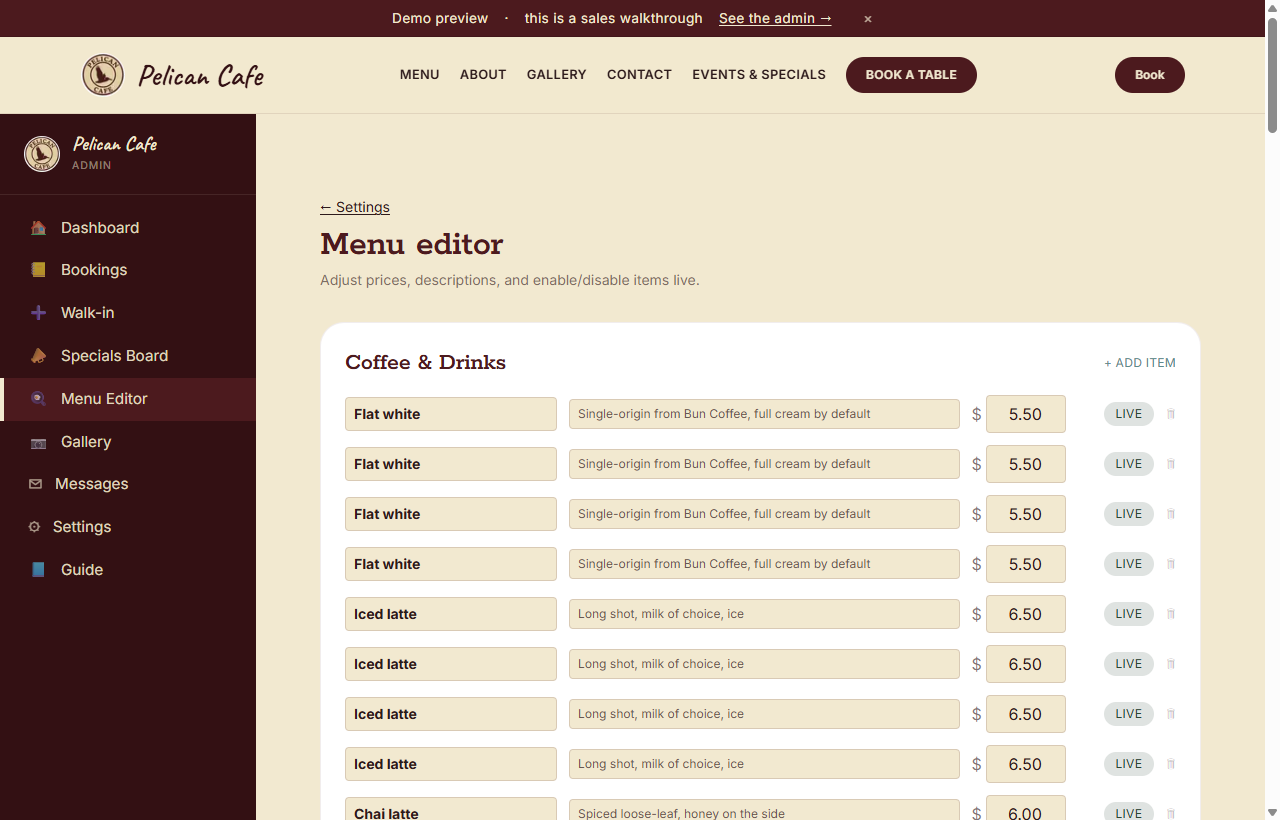
Sidebar → Menu Editor. Each item is a row: name, description, price, and a Live / Hidden toggle.
Tab out of any field and your change saves automatically — no Save button to remember. The Live / Hidden toggle lets you take an item off the menu without deleting it (useful when you've sold out for the day).
+ Add item at the top of each section drops a new row in. Click the 🗑 to delete one for good.
09Upload to the gallery
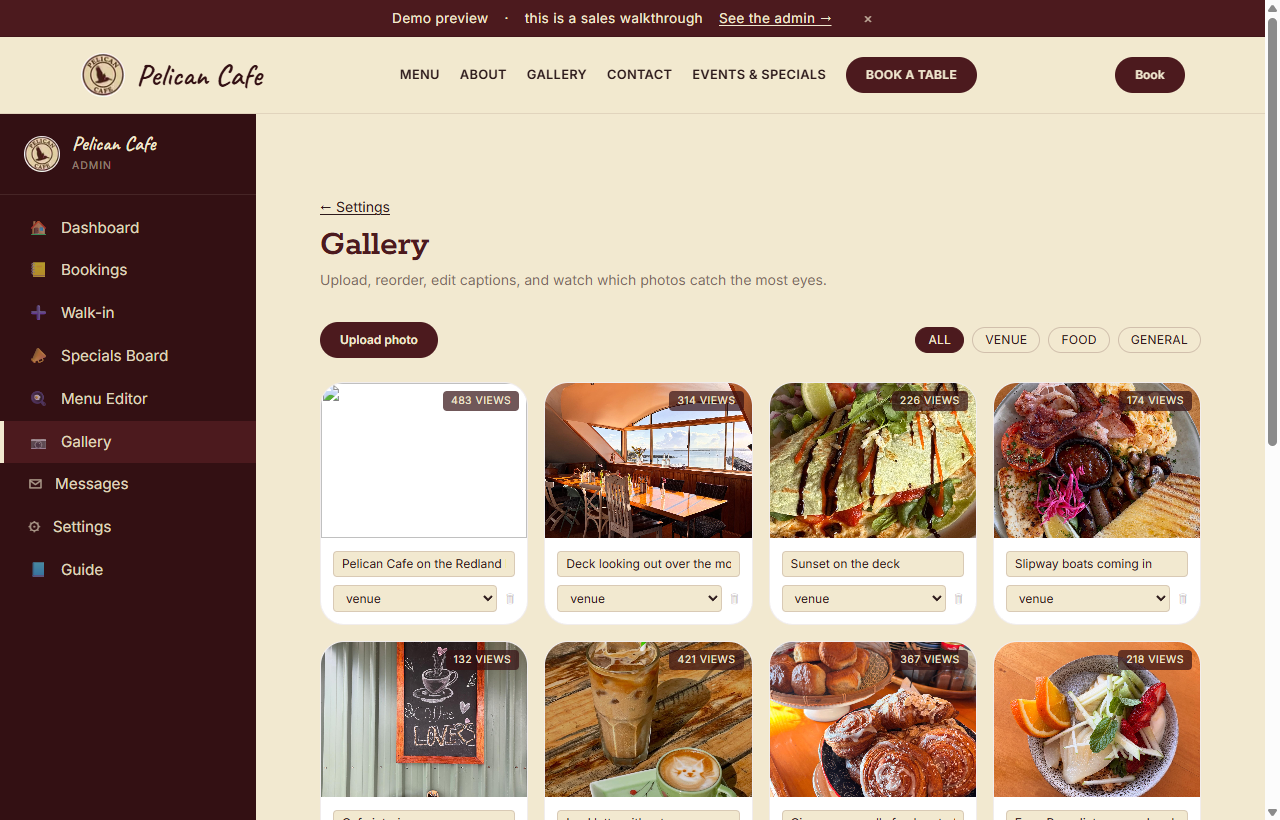
Sidebar → Gallery. Tap Upload photo, pick from your camera roll, done.
Each photo card shows its current view count — useful to see which pictures are catching eyes on the public gallery. Edit the caption inline and switch its category between Venue, Food, and General.
Photos appear immediately on /gallery on the public site, filterable by category.
10Read messages
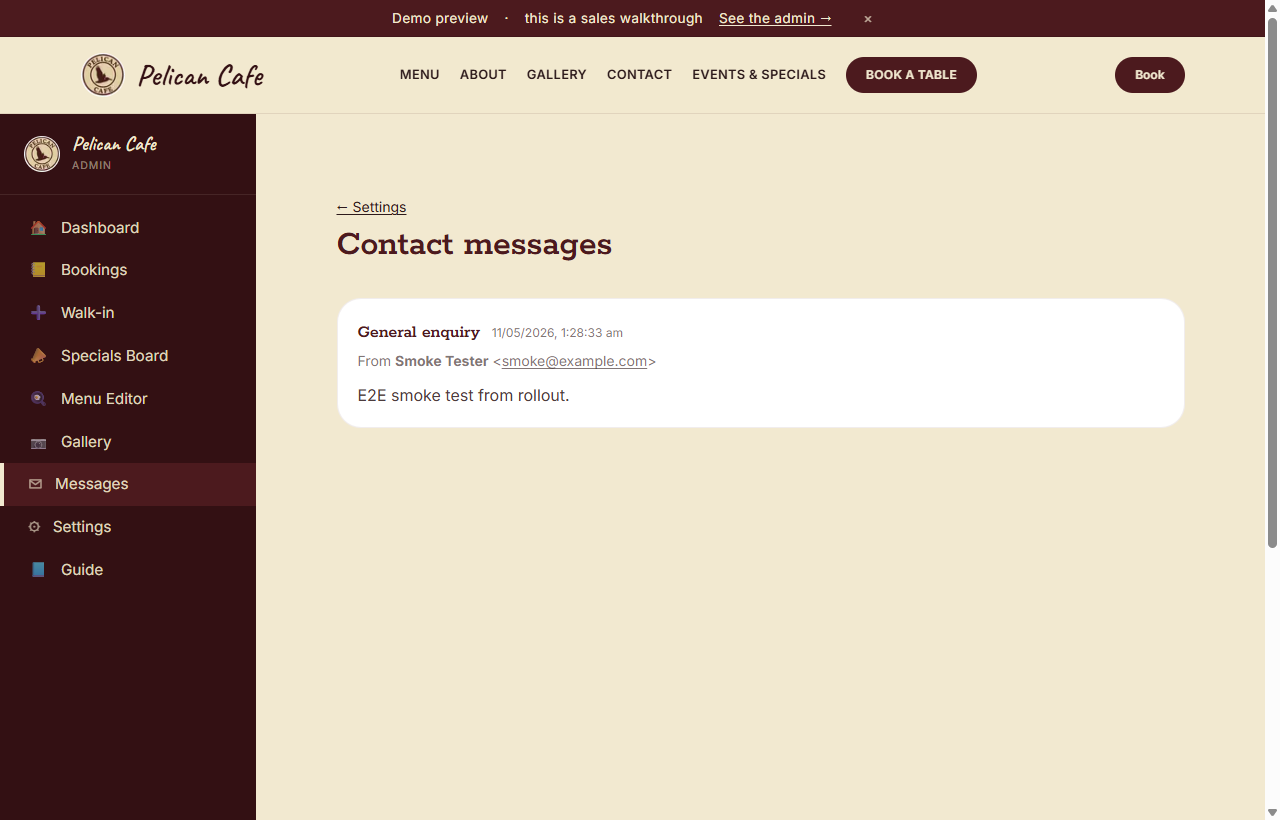
Sidebar → Messages. Anyone who fills in Send us a Message on the contact page lands here — with their name, email, subject, and message.
Reply directly by clicking their email link — opens your normal mail app.
The dashboard shows an Unread messages counter so you don't lose any.